 The Good Sign Company
Indoor counter-sign comparison
QR code sign vs printed menu: which belongs at the counter?
Use a printed menu when customers need the core choices without a phone. Add a QR code when the linked page makes changing details or deeper information genuinely easier. For most counters, the strongest setup is not QR-only: it keeps a readable non-phone path beside a clearly labeled scan option.
Disclosure: As an Amazon Associate, we may earn from qualifying purchases and approved partner referrals.
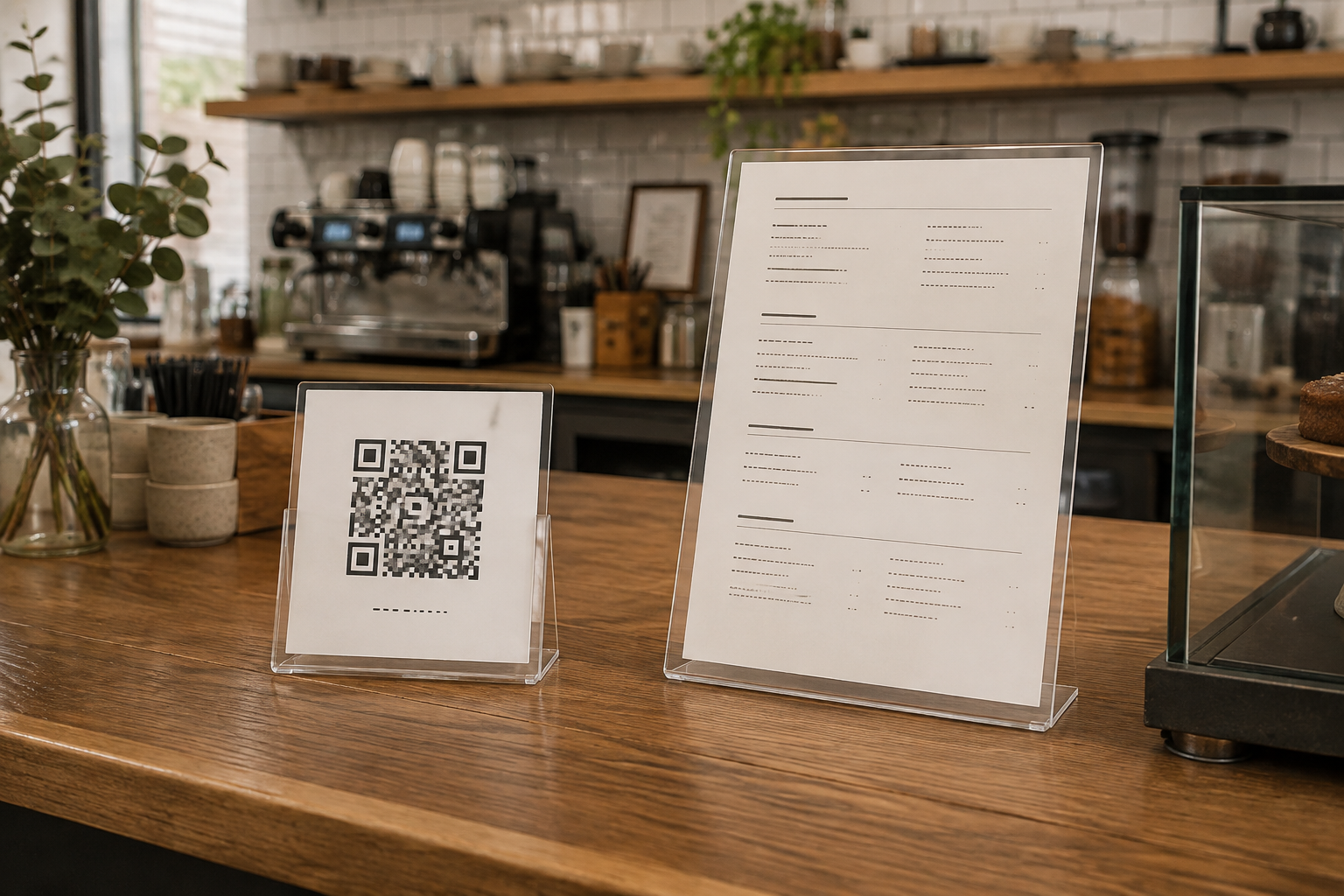
Match the holder to the final insert
Measure the printed sheet or QR card, the usable counter footprint, and the customer viewing angle before choosing a holder. A clear holder can support either route, but its insert orientation, loading edge, base depth, and reflections should fit the actual counter.
Quick decision
- Choose print first when the menu is short, the main items fit at a readable size, and customers should not need a device to order.
- Add a QR sign when the destination is mobile-friendly, actively maintained, and useful for details that would crowd the counter.
- Use both when print can carry the essential choices while the code opens descriptions, images, translations, or frequently changing details.
- Skip the QR code when the destination duplicates a short printed menu, loads poorly, or no one owns the testing and update routine.
The practical differences
| Decision | QR code sign | Printed menu |
|---|---|---|
| Access | Requires a suitable phone, camera use, connectivity where needed, and a successful handoff to the destination. | Presents information directly to anyone who can reach and read the display. |
| Amount of information | Can open a longer page without putting every detail on the counter card. | Works best when hierarchy and type size survive the available sheet and viewing distance. |
| Updates | The destination can change without replacing the printed code when the URL remains controlled and valid. | Every content change requires a new insert, but the current version is visible and easy to inspect. |
| Failure points | Glare, distance, a damaged code, device settings, connectivity, or a broken destination can interrupt the path. | Small type, crowding, glare, stale prints, or a blocked sightline can make the menu hard to use. |
| Upkeep | Needs recurring scans on representative devices plus destination and redirect ownership. | Needs version control, reprinting, clean holders, and prompt removal of outdated copies. |
Decide what must be visible without scanning
Start with the customer's immediate task. If they need categories, a short list, ordering instructions, or a next-step prompt before reaching the register, keep that information in plain view. A code should not replace the label that explains what the scan does.
A useful paired setup might show the core menu in print and label the code “full item details” or “current online menu.” Keep the label truthful and short. Do not make customers scan merely to discover what the code opens.
Run a counter-path test
- Stand where a customer first needs the menu and identify the usable reading distance.
- Place full-size paper mockups around payment equipment, displays, pickup areas, and staff reach zones.
- Check whether the printed hierarchy is readable before the customer reaches the front of the line.
- Test the QR code from realistic angles and under the counter lighting with more than one representative device.
- Follow the entire destination path. Confirm that it loads, identifies the business and task, and does not hide essential information behind unnecessary steps.
- Keep a visible or staff-provided non-phone route and decide who checks both versions after every update.
Plan the QR route as maintained content
A crisp code is only the front door. Use a destination the business controls, avoid encoding a temporary file location, and keep the code's printed destination label separate from decorative graphics. After any website, menu-platform, domain, or redirect change, rescan the physical sign at the counter rather than assuming it still works.
If scanning itself is still the open question, use the QR code counter-sign worth-it guide. If the QR route is already justified, the QR code sign guide covers card size, contrast, glare, placement, and fallback planning. If the customer will use a phone either way, compare a QR code sign with an NFC tap sign by interaction cue, device behavior, testing, and upkeep.
Make the printed menu earn its footprint
A printed sheet is not automatically clearer. Measure the holder's visible area, then set the longest real item name and important modifier at full size. If the menu only fits by shrinking type or compressing sections, split the decision: show the essential categories and popular choices at the counter, then provide a clearly named route to the deeper list.
For information that changes by hand throughout the day, compare menu boards for small cafes. For a replaceable paper display, confirm insert size, orientation, loading access, base footprint, face count, and reflections rather than buying by the holder's outer dimensions.
Who should skip each option?
- Skip a QR-only menu when customers cannot complete the basic task without a compatible device or staff intervention.
- Skip a large printed menu when the content changes too often to keep every counter copy synchronized.
- Skip a two-display setup when it repeats the same short information and consumes scarce transaction space.
- Move either display when it blocks payment equipment, products, staff movement, or the customer's view of the pickup process.
- Treat accessibility, payment, privacy, and local operating requirements as project-specific questions for the appropriate qualified reviewer; this decor and buying guide is not a compliance determination.
The bottom line
Print wins for immediate, device-free access. A QR code earns counter space when it opens maintained information that cannot fit cleanly in the physical display. Keep the essential choice visible, label the scan outcome, test the whole route, and give one person responsibility for retiring stale print and broken links.